Last updated: September 19, 2026
Notion can work as a flexible project management system for freelancers, small teams, and growing businesses. Instead of separating tasks, project plans, meeting notes, and documents across several apps, you can connect them inside one workspace.
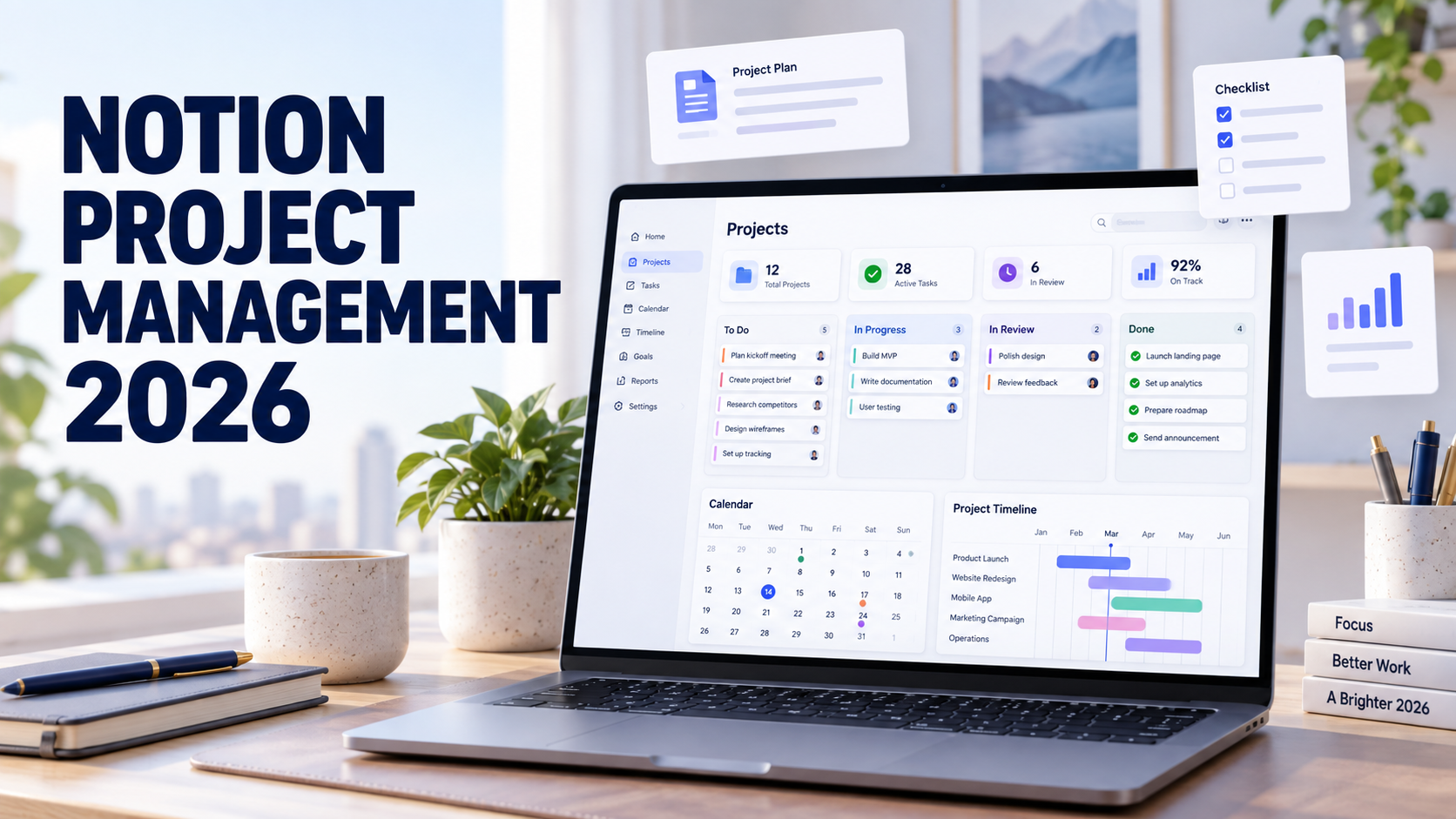
This beginner’s guide explains how to use Notion for project management in 2026. You will learn how to create a project dashboard, build project and task databases, add useful views, connect related information, and establish a simple weekly workflow.
Quick recommendation: Begin with only two databases—Projects and Tasks. Add more features after your team uses the basic system consistently.
What You Can Manage in Notion
A Notion project management workspace can bring several types of work together:
- Projects and their goals
- Tasks, deadlines, priorities, and owners
- Meeting notes and decisions
- Project documents and reference materials
- Progress tracking and status updates
- Calendar, board, table, and timeline views
Unlike a traditional task manager with a fixed structure, Notion lets you design databases and pages around the way your team works. This flexibility is useful, but it also means beginners should avoid building an overly complicated system.
Notion Project Management Structure
A practical beginner setup has three main parts:
| Area | Purpose | Example Information |
|---|---|---|
| Projects database | Tracks major outcomes and initiatives | Status, owner, start date, deadline, priority |
| Tasks database | Tracks individual actions | Assignee, due date, status, related project |
| Dashboard | Shows the information you need most often | Active projects, upcoming tasks, overdue work |
This structure keeps projects and tasks separate while allowing them to be connected. A project may contain many tasks, while every task can point back to its related project.
Step 1: Create a Project Dashboard
Create a new Notion page and name it Project Dashboard. This page will become the starting point for your work.
Add a short description explaining what belongs in the workspace. You can also add headings for:
- Active Projects
- My Tasks
- Upcoming Deadlines
- Meeting Notes
- Resources
Do not try to complete the entire dashboard immediately. First create the underlying Projects and Tasks databases. You can return later and place filtered database views on the dashboard.
Step 2: Build the Projects Database
On your dashboard, create a new database and name it Projects. Each database item will represent one project.
Add the following properties:
| Property | Type | Purpose |
|---|---|---|
| Project name | Title | Identifies the project |
| Status | Status | Shows whether work is planned, active, paused, or complete |
| Owner | Person | Identifies the person responsible |
| Priority | Select | Marks high, medium, or low priority |
| Start date | Date | Shows when work begins |
| Deadline | Date | Shows the target completion date |
Keep project status options simple. For example:
- Not started
- In progress
- On hold
- Completed
Too many status options make reports harder to understand and create uncertainty about which status to choose.
Step 3: Build the Tasks Database
Create a second database named Tasks. Every item should describe one clear action that can be completed.
Add these properties:
| Property | Type | Purpose |
|---|---|---|
| Task name | Title | Describes the action |
| Status | Status | Tracks task progress |
| Assignee | Person | Shows who will complete the task |
| Due date | Date | Sets the deadline |
| Priority | Select | Identifies important work |
| Project | Relation | Connects the task to the Projects database |
Use action-based task names such as “Draft landing page copy” or “Review September campaign results.” Names such as “Website” or “Marketing” are too broad and make the next action unclear.
Step 4: Connect Projects and Tasks
In the Tasks database, add a Relation property and connect it to the Projects database. This lets you assign each task to its project.
For example, a project called “Launch New Website” might include these related tasks:
- Confirm sitemap
- Write homepage copy
- Prepare product screenshots
- Test mobile layout
- Publish the website
You can also display the connected tasks inside each project page. This makes it easier to open a project and see its work, documents, deadlines, and notes in one place.
Notion also supports rollups for summarizing connected database information. Once you are comfortable with relations, you can experiment with rollups to display task counts or other project-level summaries.
Step 5: Add Useful Database Views
A single database can have multiple views. Each view displays the same underlying information in a different format.
Table View
Use a table when you need to edit properties quickly, compare details, or review many tasks at once. This is usually the best view for setting up a new database.
Board View
Group tasks by status to create a visual workflow. Team members can move work between columns such as Not started, In progress, and Completed.
Calendar View
Use a calendar to review tasks and projects by date. It is helpful for content schedules, campaigns, launches, and work with firm deadlines.
Timeline View
A timeline helps you see project dates across a longer period. It is useful when projects overlap or when you need to understand the sequence of upcoming work.
List View
A list provides a clean, compact view for dashboards and simple personal task lists.
Step 6: Create Filtered Dashboard Views
Return to the Project Dashboard and add linked views of your databases. Then apply filters so each section shows only relevant information.
Useful dashboard views include:
- Active Projects: Status is In progress
- My Tasks: Assignee is the current user and status is not Completed
- Due This Week: Due date falls within the current week
- Overdue Tasks: Due date is before today and status is not Completed
- Recently Completed: Status is Completed
Filtered views reduce clutter without deleting information. The original database still contains every item, while each dashboard section presents a focused view.
Step 7: Create Reusable Templates
Database templates help your team create consistent project and task pages. A project template might include:
- Project objective
- Success criteria
- Scope and deliverables
- Key stakeholders
- Important links
- Meeting notes
- Risks and decisions
A task template can include a short description, definition of done, supporting links, and a checklist.
Templates save time, but they should remain lightweight. If users regularly delete most of a template, simplify it.
Step 8: Add Meeting Notes and Documents
One advantage of Notion is that every project database item is also a page. You can place briefs, research, meeting notes, decisions, and reference links inside the relevant project page.
For a larger workspace, create a separate Meeting Notes database and connect it to Projects with a Relation property. This allows team members to open a project and find its related tasks and meeting history.
Record decisions clearly with the decision, date, owner, and reason. This prevents the team from repeating old discussions or losing important context.
Step 9: Establish a Weekly Workflow
A project management system only works when people update it consistently. Use a simple weekly routine:
- Review active projects.
- Check overdue and upcoming tasks.
- Assign every active task to one owner.
- Update task and project statuses.
- Move completed items out of active views.
- Record important decisions and blockers.
- Choose the highest-priority work for the next week.
A short weekly review is usually more valuable than adding more properties, formulas, or decorative elements.
Common Notion Project Management Mistakes
Building Too Much Before Starting
Beginners often spend more time designing the system than completing work. Start with Projects, Tasks, and a basic dashboard. Add complexity only when a real need appears.
Using Too Many Databases
Separate databases for every department or project can fragment information. Shared Projects and Tasks databases with filtered views are often easier to maintain.
Creating Unclear Task Names
Every task should describe a specific action. If a task cannot be completed or clearly checked, divide it into smaller steps.
Assigning Multiple Owners
A task with several owners may effectively have no owner. Assign one directly responsible person while using comments or mentions for collaborators.
Ignoring Archived Work
Completed projects can clutter active views. Filter completed work from the main dashboard instead of immediately deleting valuable history.
When Notion Works Best
Notion is especially useful when project work depends heavily on documents, research, meeting notes, and shared knowledge. It gives teams the freedom to connect structured task tracking with detailed pages.
However, teams that require highly specialized workload planning, advanced time tracking, or complex operational reporting may prefer a more structured project management platform.
For a broader evaluation of the platform, read our Notion Review 2026. You can also compare its project management approach with ClickUp in our Notion vs ClickUp 2026 comparison.
Frequently Asked Questions
Can beginners use Notion for project management?
Yes. Beginners can start with a Projects database, a Tasks database, and a simple dashboard. The main challenge is avoiding unnecessary complexity during the initial setup.
Can Notion show tasks in different formats?
Yes. A Notion database can be displayed through multiple views, including table, board, calendar, timeline, and list layouts.
Should projects and tasks use separate databases?
For most teams, separate but connected databases provide a clean structure. Projects represent larger outcomes, while tasks represent the actions required to complete them.
Can Notion connect meeting notes to projects?
Yes. Relation properties can connect project, task, and meeting-note databases so related information is easier to find.
Is Notion suitable for large and complex projects?
It can support complex workflows, but its flexible structure requires careful design and consistent maintenance. Teams needing advanced resource management or highly specialized reporting should evaluate whether a dedicated project management tool fits better.
Final Verdict
Notion can become an effective project management workspace when it is kept simple and maintained consistently. Start with Projects and Tasks, connect them with a relation, create a few focused views, and review the system every week.
The goal is not to build the most impressive dashboard. The goal is to give every team member a clear answer to three questions: What are we working on, who owns the next action, and when is it due?